Uploading Assets
Learn how to upload images, audio, and data files to your PlayableLabs asset library
Overview
Assets are the media files that power your playable ads -- textures, sprites, audio clips, and data files. PlayableLabs stores all assets in Cloudflare R2 with CDN delivery, scoped to your organization for security and isolation.
Supported Formats
| Category | Formats | Use Cases |
|---|---|---|
| Images | PNG, JPG, WebP, SVG | Textures, sprites, backgrounds, UI elements |
| Audio | MP3, OGG, WAV | Background music, sound effects, voiceovers |
| Video | MP4, WebM | Video backgrounds, cutscenes, promotional content |
| Fonts | TTF, OTF, WOFF, WOFF2 | Custom typography for UI and text elements |
| Models | GLB, GLTF, OBJ, FBX, DAE | 3D assets for games with 3D rendering |
| Data | JSON | Configuration, level data, animation definitions |
File Size Limits
- All file types: Up to 100 MB per file (configurable by your organization admin)
Tip: Use compressed formats (WebP for images, MP3/OGG for audio) to keep your exported playable ads within ad network size limits.
Uploading Files
There are two ways to upload assets.
Drag and Drop
- Navigate to the Assets section from the sidebar (or the Assets tab inside a game)
- Drag files from your file explorer directly onto the upload area
- PlayableLabs validates format and size automatically
- Files appear in your asset library once upload completes
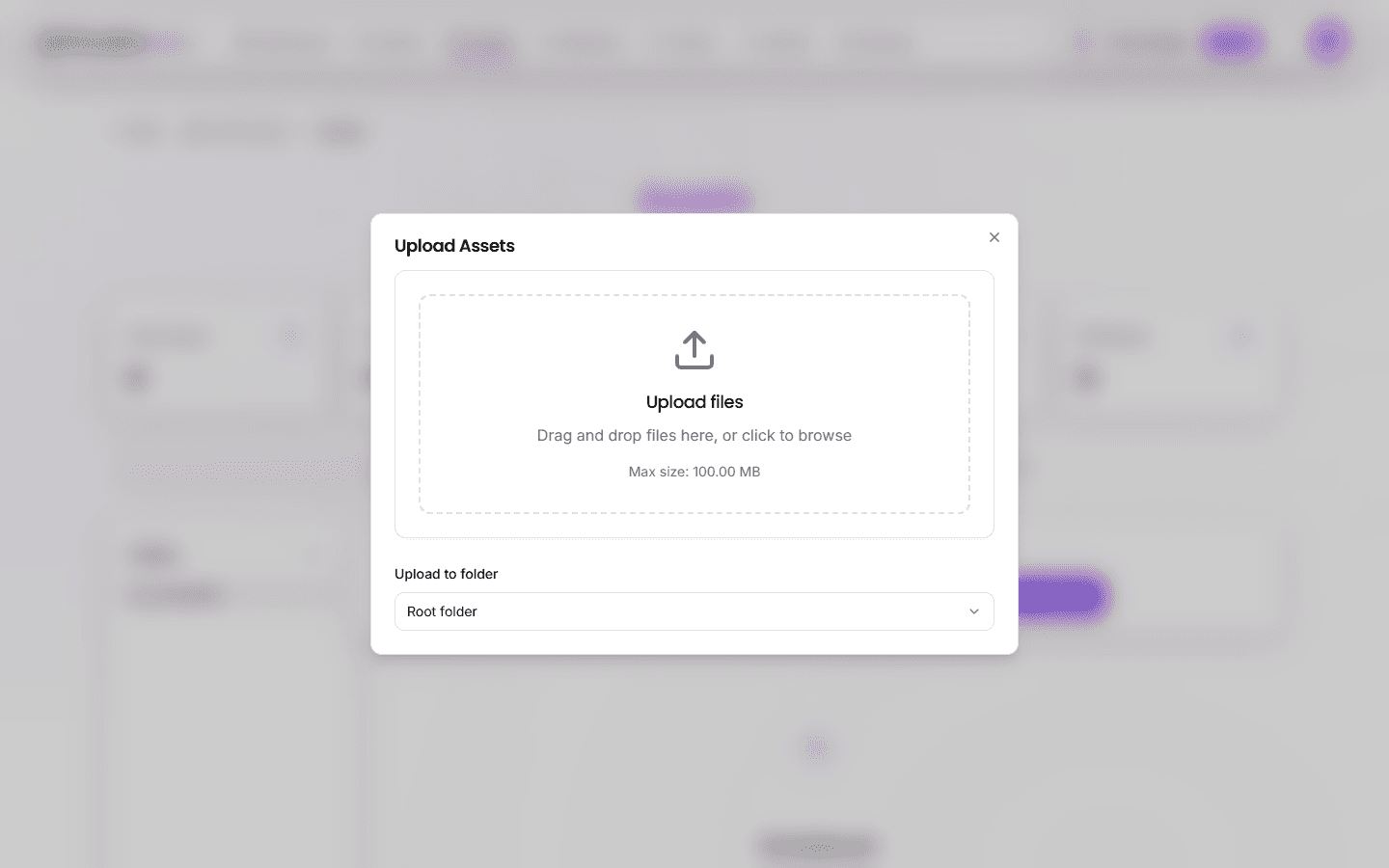
Click to Upload
- Click the Upload button in the asset library
- Select one or more files from the file picker
- Choose a destination folder (optional)
- Add metadata before uploading:
- Name — Asset display name (auto-filled from filename)
- Description — Optional notes about the asset
- Type — Auto-detected from file extension and MIME type
- Click Upload to start the transfer
Bulk Upload
You can upload multiple files at once using either method. Select or drag multiple files and PlayableLabs processes them in parallel. A progress indicator shows the status of each file.
Note: Very large batches (50+ files) may take longer depending on your connection. Each file uploads independently, so a single failure does not block the rest.
How Storage Works
When you upload a file, PlayableLabs:
- Validates the file format and size
- Uploads the file to Cloudflare R2, scoped under your organization ID
- Creates an asset record in the database with metadata and the R2 URL
- Serves the file via CDN for fast preview loading
Assets are stored as URLs internally. During export, the platform automatically converts them to base64 for single-file HTML output. You do not need to handle this conversion manually.
Uploading Within a Game
You can also upload assets directly from a game's Assets tab. Assets uploaded this way are automatically associated with that game, making them easy to find when configuring versions and variants.
- Open a game from the Games list
- Go to the Assets tab
- Upload files using drag-and-drop or the upload button
- Assets appear in both the game's tab and the global asset library
Next Steps
- Organize assets into collections for easier management
- Edit, replace, or delete assets as your project evolves