Preview System
Preview playable ads in real-time with SDK bridge, device simulation, and zoom controls
Overview
The Preview System lets you see your playable ad exactly as it will appear on target devices. Changes made in the Parameter Editor are reflected instantly in the preview panel using the SDK bridge for real-time synchronization.
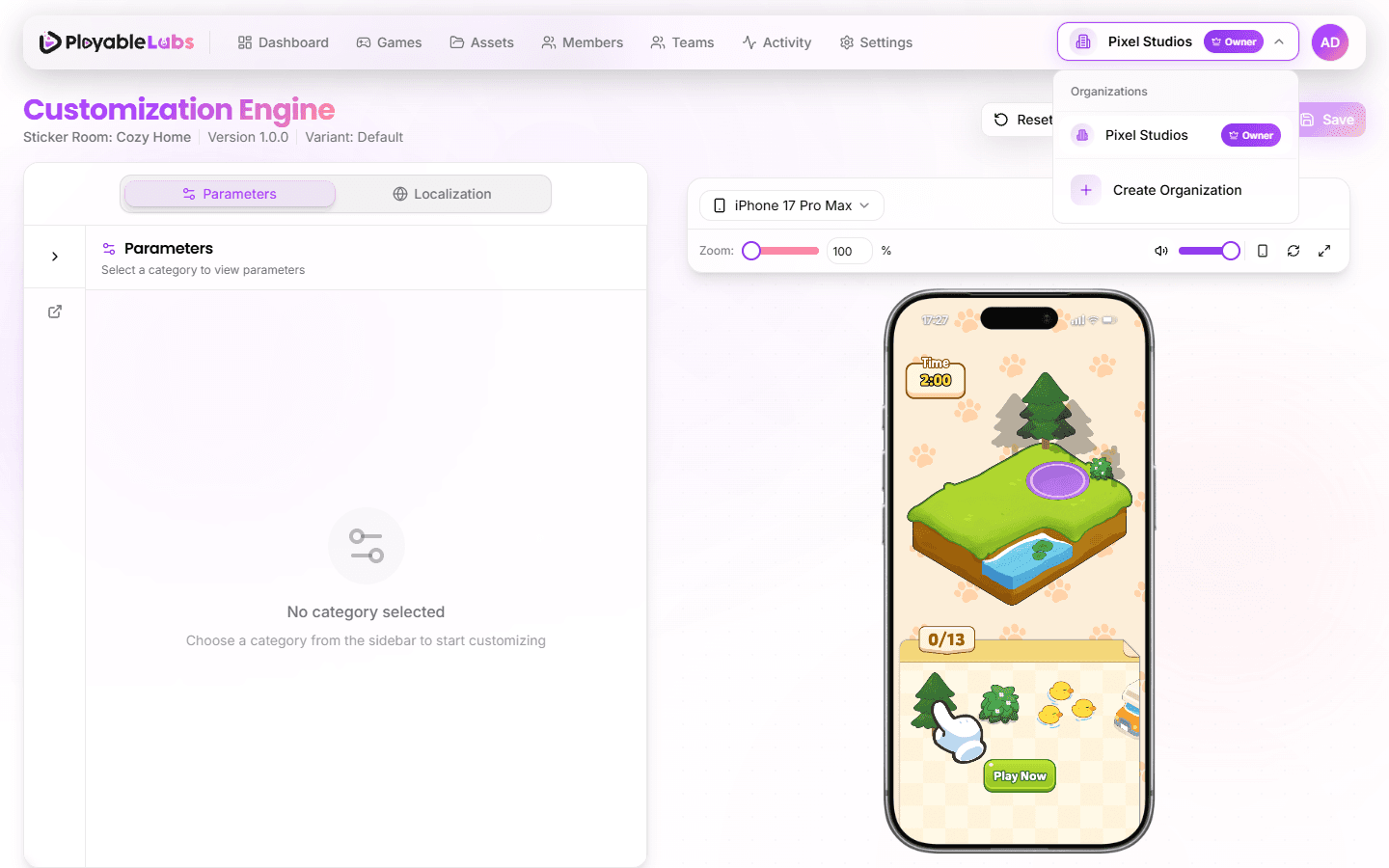
Split-View Layout
The customization page uses a split-view layout:
- Left panel -- Parameter Editor with category sidebar
- Right panel -- Live preview of the playable ad
The layout is responsive -- panels stack vertically on smaller screens and split horizontally on desktop.
Real-Time Updates
PlayableLabs uses the SDK bridge with window.postMessage to push parameter changes to the preview in real-time:
- You edit a parameter in the editor
- The change is serialized to a structured message
- The message is sent to the preview iframe via the SDK bridge
- Type conversion (colors, numbers, coordinates) is handled automatically
- The preview updates instantly -- no manual refresh needed
Device Simulation
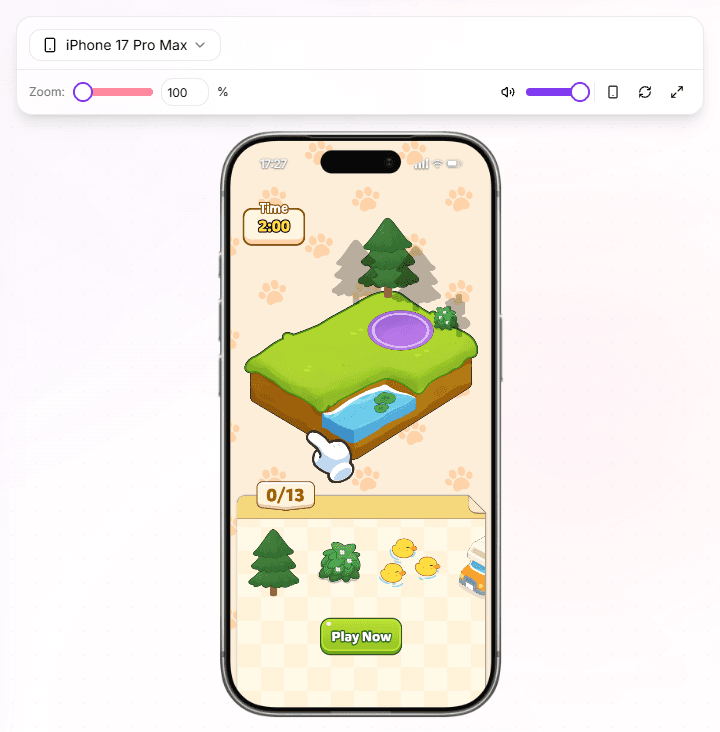
The preview can simulate how your playable ad will look on different devices.
Selecting a Device
- Click the device selector dropdown above the preview
- Choose from available device presets with realistic device frames
- The preview resizes to match the selected device's screen dimensions
Available device categories include:
- Mobile phones — iPhone Air, iPhone 17 Pro Max, iPhone 16 Pro, and more
- Tablets — iPad, Android tablets
- Desktop — Standard desktop viewport sizes
The device selector shows only devices with frame images for realistic preview. Devices are sorted by newest first (iOS 17 → 16 → 15) with Pro Max and Pro variants prioritized.
Orientation
Mobile and tablet devices support both portrait and landscape orientations. Click the rotate button (smartphone icon) to toggle between them. Desktop devices do not support rotation.
When you rotate the device, the preview automatically adjusts dimensions and the device frame updates to match the new orientation.
Zoom and Audio Controls
Zoom Controls
For detailed inspection or to fit larger device frames on screen:
- Zoom slider — Drag to adjust zoom level from 100% to 200%
- Numeric input — Enter a specific zoom percentage (100-200)
- Pan mode — When zoomed in (>100%), hold
Spaceand drag to pan around the preview
The zoom controls are located in the preview toolbar and are hidden on mobile devices to save space.
Audio Controls
Control audio playback in the preview:
- Mute/Unmute — Click the volume icon to toggle audio
- Volume slider — Adjust volume level from 0% to 100%
Audio changes apply immediately to the preview iframe without requiring a refresh.
Preview Modes
Live Edit Mode
The default mode. All parameter changes appear in real-time. The preview is interactive -- you can click and interact with the playable ad as an end user would.
Export Preview
Before exporting, you can preview the final output for a specific ad network:
- Click Preview Export in the export dialog
- Select the target network (e.g., Meta, Google Ads)
- The preview renders the playable ad with network-specific constraints (file size, format)
This helps catch issues before generating the final export.
Troubleshooting
Preview Not Updating
- Refresh the preview using the refresh button in the preview header
- Verify that your changes are saved (unsaved changes may not propagate)
- Clear your browser cache if the issue persists
Slow Preview Performance
- Close unused browser tabs to free memory
- Choose a smaller device preset to reduce rendering load
- Disable other browser extensions that may interfere
Next Steps
- Parameter Editor -- Edit parameters and understand overrides
- Localization -- Preview locale-specific content