Creating Games
Step-by-step guide to creating and configuring games in PlayableLabs
Before You Start
Make sure you have:
- An active organization (see Create Organization)
- Member, Manager, or Admin role in your organization
Creating a New Game
- Navigate to Games in the sidebar
- Click Create Game in the top-right corner
- Choose your creation method using the tabs:
- Manual Entry — Enter game details manually
- Import from Store — Fetch metadata from App Store or Google Play
Manual Entry
Fill in the game details:
- Name (required) — A descriptive name for your project
- Game Logo (optional) — Upload JPEG, PNG, WebP, or GIF (max 5MB)
- Description — Optional context for your team
- Category — Puzzle, Arcade, Action, Strategy, Simulation, Sports, Racing, Casual, Hypercasual, or Other
- Tags — Press Enter after each tag to add labels for filtering
Import from Store
To auto-fill game details from an app store:
- Switch to the Import from Store tab
- Enter the App Store or Google Play URL
- Click Fetch Preview to retrieve metadata
- Review the imported name, description, logo, and category
- Click Use This Data to pre-fill the manual form
- Edit any fields as needed and click Create Game
Imported logos are automatically set but can be changed or removed before creation.
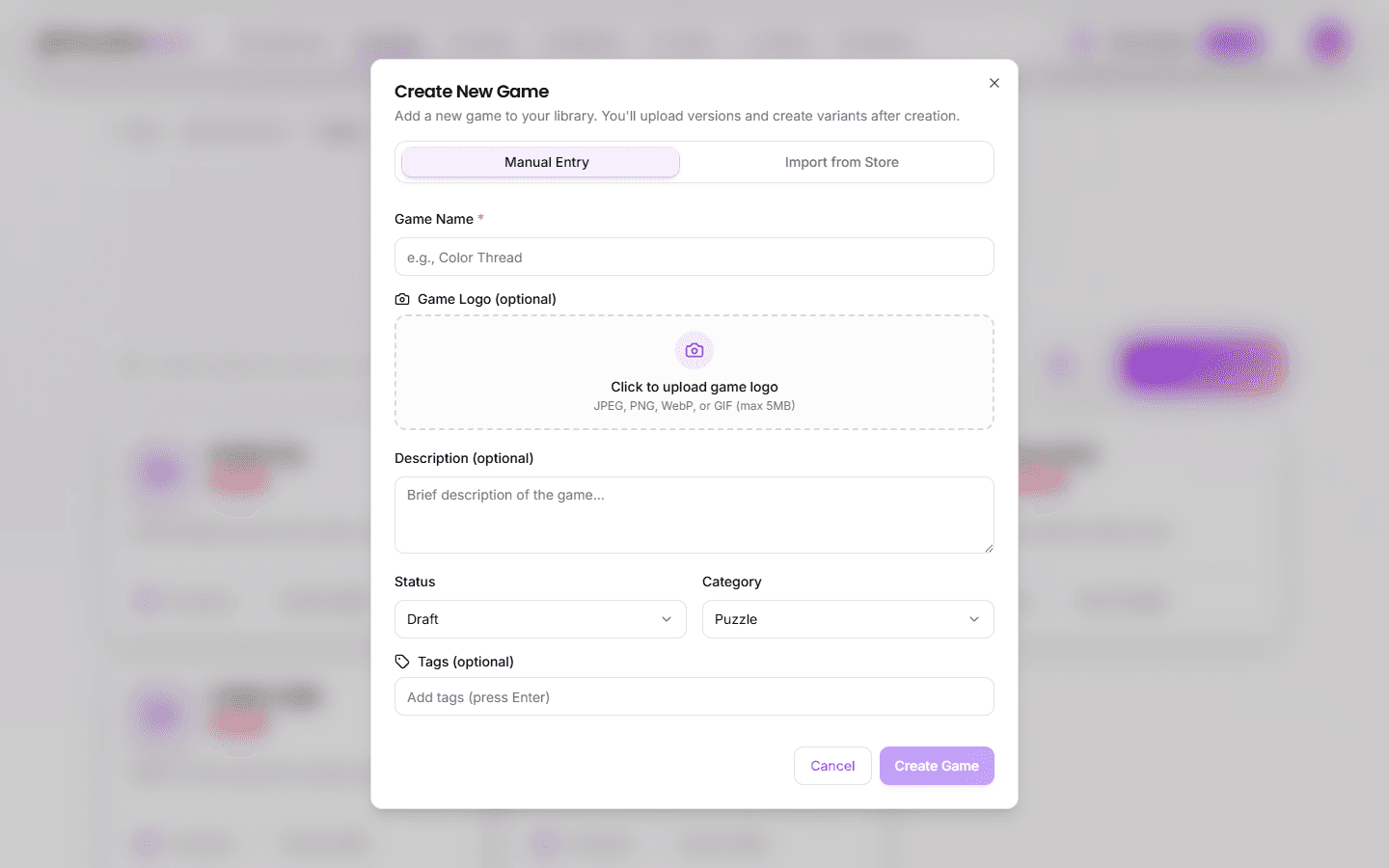
The new game appears in your games list and opens to the detail view.
Naming Conventions
Good naming makes projects easy to find as your library grows. Consider a consistent format:
| Convention | Example |
|---|---|
| Client - Campaign - Date | Acme - Summer Sale - 2026Q2 |
| Product - Objective | Puzzle Quest - User Acquisition |
| Genre - Network Focus | Match3 - Meta Campaign |
Tip: You can rename a game at any time from the game detail page.
Game Settings
Each game has configurable settings:
- Name — The game name shown in lists and exports
- Logo — Visual identifier for the game
- Description — Internal notes for your team
- Category — Genre classification for organization
- Tags — Custom labels for filtering (press Enter to add)
Game-level settings act as defaults. Versions and variants can override some values.
Managing Games
Deleting a Game
Warning: Deleting a game permanently removes all its versions, variants, and exported files. This action cannot be undone.
Click the three-dot menu (⋮) on any game card and select Delete. A confirmation dialog will appear.
Next Steps
- Create versions to start building your playable ad
- Upload assets to add media to your game